AI Background Generator for Product Photos: Complete 2026 Guide
AI background generators let you place any product in any scene in minutes. Here's how they work, which tools to use, and how to get results that don't look fake.
An AI background generator takes your product photo and places it in a new scene - a marble countertop, a sunlit kitchen, a minimalist studio, a seasonal holiday set - without you ever setting up a physical backdrop. In 2026, this technology has gotten good enough that most ecommerce sellers can skip buying physical backdrops entirely. But the quality range between tools is wide, and knowing how to use them well makes the difference between an image that looks like a real photograph and one that looks like a bad Photoshop job.
This guide covers how AI background generators work, what to look for when choosing one, and the workflow that produces the best results. We'll use real examples generated inside KromaSet throughout - the same workflow applies to most tools on the market.
How AI background generation works
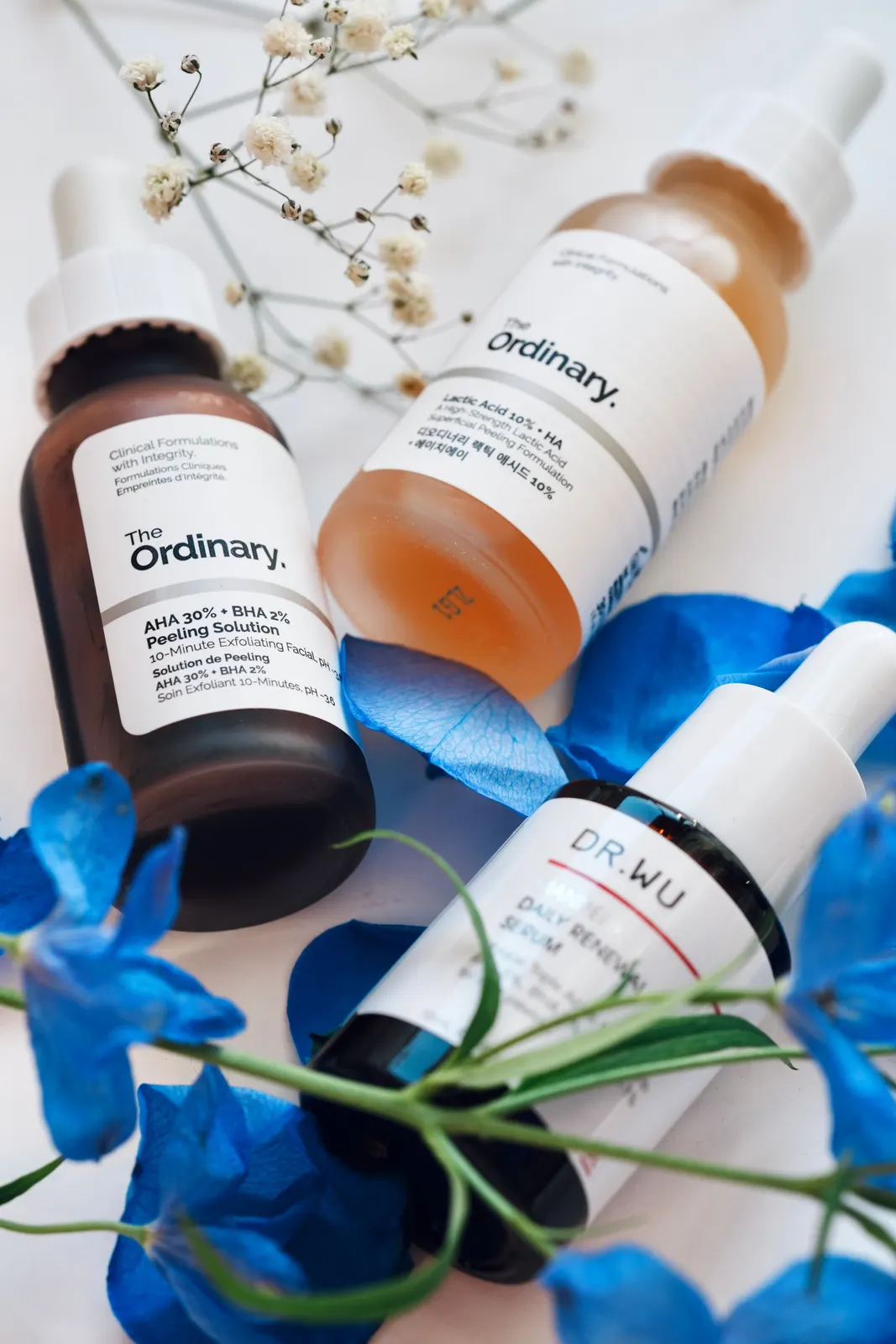
When you upload a product photo to an AI background generator, the tool doesn't just paste your product onto a pre-made background image. That approach looks fake because the lighting, shadows, and perspective never match. Instead, modern tools follow a multi-step pipeline:
- 1Background removal: The tool isolates your product from its original background. This is the step where most quality issues start - if the edges are jagged or parts of the product get cut off, every subsequent step compounds the error.
- 2Depth mapping: The tool estimates the 3D shape of your product so it knows, for example, that a bottle has a front face and sides that would catch light differently.
- 3Scene generation: A diffusion model generates a new background scene based on your chosen style or prompt. This is the 'AI image generation' part.
- 4Compositing with lighting match: The tool analyzes the lighting in the generated scene and re-lights your product to match - adding shadows, highlights, and reflections that are consistent with the new environment.
- 5Shadow generation: A contact shadow (the dark area directly under the product) and a cast shadow (the longer shadow extending from the product) are generated to ground the product in the scene.
The 'pasted on' problem
If you've ever used a cheap AI background tool and the product looked like it was floating or pasted onto the scene, it's because the tool skipped or did poorly on steps 4 and 5 - lighting match and shadow generation. These are the hardest parts and the main quality differentiator between tools.
Types of backgrounds you can generate
Most AI background generators offer some combination of these background categories:
Studio backgrounds
Clean, minimal backdrops in solid colors or gradients - white, gray, pastel, black. These are the workhorses of ecommerce catalog photography. They're also the easiest for AI to generate convincingly because there's no complex scene to render. If you sell on Amazon, you need pure white background images anyway, and AI studio backgrounds are the fastest way to get them.
Surface textures
Marble, wood, concrete, tile, fabric - these give your product a tactile, premium feel without the cost of buying and storing physical surfaces. A skincare bottle on white marble looks like a luxury brand; the same bottle on concrete looks like an indie brand. Surface texture backgrounds are where AI background generators shine for brand-building.
Lifestyle scenes
Your product placed in a real environment - a bathroom counter, a kitchen table, a desk, a garden. These help customers imagine the product in their life. AI lifestyle scenes are the hardest to generate convincingly because they often include other objects, furniture, and spatial relationships. Quality varies significantly between tools.
Seasonal and themed sets
Holiday-themed backdrops (Christmas, Valentine's, summer), seasonal color palettes, or brand-specific themes. These are useful for running time-sensitive campaigns without booking a styled shoot. Most tools rotate these seasonally.
Fantasy and conceptual scenes
Surreal or imaginative scenes - your product floating in a galaxy, placed in a miniature world, emerging from an ocean wave. These are where AI background generators do things that would be impossible or extremely expensive with physical photography. They're great for ad creative (where you want to grab attention) but not for catalog imagery (where you want clarity).
Choosing an AI background generator
When evaluating tools, the three things that matter most are: (1) how well it handles your product type, (2) whether you can edit the prompt, and (3) what the export quality looks like. Here's a quick comparison of the main options:
| Tool | Best for | Prompt editing | Free tier |
|---|---|---|---|
| KromaSet | iOS ad creative with editable prompts | Yes - full control | Yes |
| Pebblely | Quick theme-based generation | No - theme selection only | Limited |
| Photoroom | Background removal + AI backgrounds | Limited | Yes (watermarked) |
| Flair.ai | Custom drag-and-drop compositions | Yes | Trial only |
| Mida.so | Free AI product photos | Limited | Yes |
The prompt editing question is more important than it sounds. Tools without prompt editing are 'pick a theme and accept what you get.' Tools with prompt editing let you specify things like 'morning light from the left,' 'shallow depth of field,' 'product on the right third of the frame,' or 'add the headline SUMMER SALE in bold white text.' For ad creative, this control is essential.
The workflow: 5 steps to a great AI background
- 1Start with a clean product photo. The better your input, the better your output. See our iPhone product photography guide for how to take one.
- 2Choose a background style that matches your use case. Studio for catalog, surface texture for brand-building, lifestyle for product pages, fantasy for ad creative.
- 3If your tool supports prompt editing, write a specific prompt. Include: the surface, the lighting direction and mood, the camera angle, and any specific elements you want in the scene.
- 4Generate 3–5 variants. Don't accept the first output - even with the same prompt, diffusion models produce different results each time.
- 5Review for common AI artifacts: warped product labels, extra fingers (if there's a model), mismatched shadows, floating product, or distorted text. Pick the cleanest variant.
Common quality issues and how to fix them
The product looks pasted on
Cause: the tool didn't match lighting or generate proper shadows. Fix: try a different tool (the ones with 'neural staging' or 'lighting match' features handle this best), or add explicit shadow instructions to your prompt ('soft contact shadow under product, light from upper left').
The product label is warped or changed
Cause: the diffusion model 'helpfully' regenerated parts of your product. Fix: look for tools with 'product preservation' or 'product fidelity' features - these lock the product pixels and only generate the background. KromaSet, Flair.ai, and Pebblely all do this to varying degrees.
The scene looks generic or boring
Cause: you picked a preset without customization. Fix: use prompt editing to add specific details - 'morning sunlight through a window,' 'a sprig of lavender next to the bottle,' 'shot from slightly above at 30 degrees.' Specificity is what separates a great AI background from a generic one.
The image is low resolution or pixelated
Cause: you're on a free tier with resolution caps, or the tool downsamples exports. Fix: check the export settings - you want at least 1080×1080 for square images, 1080×1350 for portrait. For print, you need 3000×3000 or higher.
Real example: lipstick on a studio set vs. AI-generated ad
Let's walk through a real example. We uploaded a clean studio photo of a KromaSet-branded lipstick to the app. The original photo was shot on a white sweep with soft window light - perfectly usable for a catalog. But for an ad creative, we wanted something more striking.
We selected a backdrop style and the app generated three prompt variations. We picked the one that described 'floating mirror shards reflecting the model's features against a pitch-black void' and edited it to specify 'crimson red velvet lipstick, rose gold neck, matte black outer base, high-fashion photography, 85mm lens.' The app sent this prompt along with the product photo to the AI image generator and produced the final ad in about 30 seconds.
The result: a dramatic, editorial-style ad creative that would have required a professional photographer, a model, a studio with black backdrop, mirror props, and several hours of shooting and editing. Total cost with KromaSet: about 30 seconds and a few cents of API compute. Total cost with a traditional shoot: $500–$2,000 and 2–3 weeks of turnaround.
When to use AI backgrounds vs. real photography
AI background generation is the right choice for: catalog imagery (fast, consistent, cheap), ad creative testing (generate many variants quickly), seasonal campaigns (rotate backdrops without re-shooting), and small brands without photography budget. It's the wrong choice for: hero brand campaign imagery (where you want maximum creative control and quality), products with unusual materials that AI handles poorly (chrome, glass, fur), and any image where the scene itself is the story (not just a backdrop for the product).
For most ecommerce sellers, the answer is a hybrid: use AI backgrounds for 80% of your imagery (catalog, ads, social) and hire a real photographer for the 20% that defines your brand (homepage hero, launch campaign, brand story). This gives you the speed and cost savings of AI for the bulk of your work while preserving the quality and control of traditional photography for your most important assets.
References & Further Reading
- 11 Best AI Product Photography Tools in 2026 (Tested & Compared)
Our full comparison of 11 tools, including which ones handle background generation best.
- How to Take Product Photos with an iPhone (2026 Beginner's Guide)
AI background generators need a clean source photo. This guide shows you how to take one.
- 21 Skincare Product Photography Ideas That Actually Convert
Specific backdrop and scene ideas you can generate with AI tools.
- Photoroom: AI Backgrounds Generator
Photoroom's AI background tool, one of the options compared in this guide.
- Pebblely: AI Product Photography
Pebblely's homepage, where you can try their theme-based background generation.
Want to try AI background generation from your phone? KromaSet is a free iOS app that generates editable prompt variations from your product photo and renders production-ready backgrounds in minutes. Download from the App Store.
Try it in KromaSet
Upload a product photo and generate your first ad creative in minutes. Free on iOS.